Sunday, 18 February 2018

Packaging and Deploying Oracle Java runtime in SCCM 2007


Having trouble packaging Oracle Java in SCCM? Can't find the MSI? Once you installed Java you still have the old version as well? Today I'll explain how I to successfully deploy Oracle Java while removing older versions and be able to keep your estate to a standardized version.


1.    Visit http://www.java.com/en/download/ for the latest Java version
2.    Click “All Java Downloads”


3.    Select the “Windows Offline” version.


4.    Right click on the program and click “Run as administrator”, enter your EA credentials

5.    When the Java Welcome Screen appears don’t do anything, leave this open but don’t click “install”.


6.    Browse to the following location. Replace with your own username.

C:\Users\%username%AppData\LocalLow\Sun\Java\

In this folder you will find a subfolder with the MSI version you are attempting to install. Copy this folder to your desktop. You can now click “cancel” on the open installer.

7.    Copy the the files to the source location you use for deployment and give it a relevant name.


8.    Open up the MSI in your favourite MSI editor. In this example I'm using InstEd and click on “Transform” > New Transform. Give the Transform file a suitable name containing the product and version it’s intended for


9.    Make any modifications required to the MSI transform.

In the case of Oracle Java, we simply must disable Automatic updates via “AUTOUPDATECHECK” on the Property table. But there are other common checks you should perform such as ProductLanguage must always be 1033 (English), AllUsers should be set to 1 (this specifies a per machine context). Always ensure to create a new Transform file for each new version.


10.    Click “File” and Save, press OK when prompted.


10. In the SCCM Console, browse to software distribution > Packages and right click and choose New > Package from definition.


11.    Click next, Browse and then browse to the location of the extracted MSI, select the MSI.


12.    The Wizard will now show the product and version number, ensure this is correct and then click next. It’s important to check that this information is correct as this has the potential to replace a previous piece of software in the database. There have been several occasions where the version number clashes with a previous one. In this case you can contact the vendor and ask them to supply a changed version, or you can alter the version number for yourself in Instead (property table).


13.    Select “Always obtain files from the source directory” and click Next.
14    Click Next


15.    Click Finish


16.    Expand the new package on the left-hand pane and click on “distribution points”


17.    On the right-hand pane click “New Distribution points” and the click next on the wizard once it appears.

18.    Select the the relevant distribution point and click next. Note you will want to distribute the package to all distribution points once testing is completed. Do not copy the package to any shares marked SMSPXEIMAGES$ 


19.    Click “Close”

20.    On the left-hand pane right-click on “Programs” and select New > Program.


21.    Enter the Program name “Install Vendor, Product, Version”

eg: Install Oracle Java 8 Update 8.0.40.

22.    Enter the installation string under “Command Line”

eg: msiexec /i jre1.8.0_40.msi TRANSFORMS=Oracle_Java_RT_8040_AA.mst /qn

Click Next.


23.    Select the platform the program can be run on. Click Next.


24.    Select “Whether or not a user is logged on” and click next.


25.   In my organisation I'll be using the program for OSD and completely silent installation. I'll choose “Suppress Program Notifications” and “Allow this program to be installed from the install software task sequence without being advertised”.


26.    Select “import” and choose the installer you used, this will the import the product GUID and enable MSI source management. Record this GUID, we will use it later. Click Next.


27.    Click Next and on the review all details page click next again.

28.    Check the program creation was successful (indicated by green ticks) then click Close.


29.    We will now create a new Program to remove this version of Java, the steps for this are essentially the same as those for the first program. This time, we will use the program GUID that we recorded earlier to remove the software; this will ensure that only this unique version will be removed.

 **Important** do not enable MSI source management for the removal job.

eg: the full uninstall sting is msiexec /x {26A24AE4-039D-4CA4-87B4-2F83218025F0} /qn


30.    Right click on collections and create a “New Collection” and fill in the name of the collection name, click Next.


31.    Click Next 


32.    Press “OK” when prompted with "the collection has no membership rules" we will resolve this later. Click next, then Finish.


33.   The newly created collection will then show in the left-hand pane. We will now create a sub-collection within this collection for the pilot group. Essentially the process is a repeat of the above steps with the collection name changed. When you have done this you will have a collection within a collection similar to below.


34. We will now generate a report of all versions of Java within the estate so we know which version we need to remove.  On the left-hand pane click “Asset Intelligence” > “Asset Intelligence Reports”. On the reading pane beside “Look for” enter Search for installed software”.


35.    Right Click the report and choose “run”

36.    When the report appears select “values” and select the SMS00001 collection (all systems). Enter %Java% in the “Enter a part of the product name” field and then click “Display”

37.    The report produced will show all known Java versions in the estate, we are interested in the “Software ID” field, these GUIDS will be used these to ensure that all previous versions are removed from a system before installing the new version. Keep this report open.

**Important** Programs other than the one you are searching for may appear


38.    Open the location you stored your Java MSI and create a new text document in notepad, save as“Oracle_Java_Removal.cmd” file and reopen this up with notepad.

The .cmd should start with the following tasks to close open browsers and kill relevant processes that may stop the uninstall from being successful.

@ECHO OFF
REM Close all open web browsers
:killfirefox
taskkill /f /t /im firefox.exe
tasklist /FI "IMAGENAME eq firefox.exe" 2>NUL | find /I /N "firefox.exe">NUL
if "%ERRORLEVEL%"=="0" GOTO killfirefox
:killiexplore
taskkill /f /t /im iexplore.exe
tasklist /FI "IMAGENAME eq iexplore.exe" 2>NUL | find /I /N "iexplore.exe">NUL
if "%ERRORLEVEL%"=="0" GOTO killiexplore
:killchrome
taskkill /f /t /im chrome.exe
tasklist /FI "IMAGENAME eq chrome.exe" 2>NUL | find /I /N "chrome.exe">NUL
if "%ERRORLEVEL%"=="0" GOTO killchrome
REM Close all JAVA Background Processes
:killjusched
taskkill /f /t /im jusched.exe
tasklist /FI "IMAGENAME eq jusched.exe" 2>NUL | find /I /N "jusched.exe">NUL
if "%ERRORLEVEL%"=="0" GOTO killjusched
:killjucheck
taskkill /f /t /im jucheck.exe
tasklist /FI "IMAGENAME eq jucheck.exe" 2>NUL | find /I /N "jucheck.exe">NUL
if "%ERRORLEVEL%"=="0" GOTO killjucheck
:killjqs
taskkill /f /t /im jqs.exe
tasklist /FI "IMAGENAME eq jqs.exe" 2>NUL | find /I /N "jqs.exe">NUL
if "%ERRORLEVEL%"=="0" GOTO killjqs

 Next  add your GUIDS from the report line by line in this format.

msiexec.exe /qn /norestart /x {B048D821-636D-43D9-82EC-8B0010734231} 
msiexec.exe /qn /norestart /x {726880D7-98DE-41CC-B553-E6084260CFB7} 
msiexec.exe /qn /norestart /x {0C933B8C-1154-4EC8-8832-55CEAACA3B13} 
msiexec.exe /qn /norestart /x {3076929A-FB47-4CB7-A8FF-72CB95C22F95}

End the script with 

exit /B %EXIT_CODE%

Ensure to save the script.

**IMPORTANT** you should also INCLUDE the GUID of the latest version you are deploying. This will ensure that any installations of that version on the estate are the managed version you have distributed from SCCM.


 39.    Now open the SCCM console and browse to “Software distribution” > Packages and find your Java package. Click “Update distribution points” on the right-hand pane. When prompted by the “Confirm Update distribution points” box click “Yes”


40.    In the SCCM Console browse to “Operating System Deployment” > Task Sequences >Create a new "basic task sequence called "Install Oracle Java Versionname". 

41.    Right Click on the newly duplicated task sequence and click “properties”

42.    In the “Name” field, update it to the include the include the product and  latest version you are deploying. Press “Apply” when finished.


43.    Back to the main console window, right click on the newly renamed task sequence and choose “edit”

44.    Create a new group at the top level with the version being deployed. inside this add a "remove all oracle java" step as a "run command line". Ensure to set the package to the Java package you created earlier. I've also set the "continue on error" option for this in case there is an unknown exit code returned.


45.    Add a "delay step as step 2" this is just a "run command line" step with the command set to ping a loopback address for approx 20 seconds.


46.    Lastly add a "install program" step and add the program we created earlier, ensure the "install" program is selected.


47.    Right click on the newly created Task Sequence and then click “advertise”.

48.    Click “Browse” beside collection: and then select the “Pilot” collection you created earlier. Click OK.


49.    Click Next


50.    Click the “Sun” button beside “Mandatory assignments” and select “Immediately after this event” and “As soon as possible” from the drop-down menu, click OK.


51. Select “High” priority, and “Always rerun program” and click next.


52.     Select “download all contents locally before starting task sequence”, “when no local distribution point is available, use a remote distribution point” and “when no protected distribution point is available, use an unprotected distribution point”. Click Next.


53.    Click next three times and finally click close.


The pilot application is now ready for deployment testing. You can now add clients directly into the pilot collection, any previous versions of Java will be removed before installing the new version. 

When you are satisfied that your deployment works and removes all previous versions you should the create a new collection for rollout set it to refresh every day, use a query based collection to search for all systems with Java installed not at the same version you want to deploy (example below)

Exclusions for systems can also be added as below.


When this collection becomes empty, the deployment will have been successful to the estate.

You can keep track of the systems you've upgraded by using another collection with query containing the version you are deploying. (as below)


When you run the job all versions will be replaced with this new version. You can keep your estate at this version by adding any newly released versions GUIDS to the removal script, or upgrade to a newer version by simply replacing the package with the new version.

I appreciate this is a long post, if you've stuck with me this far, thanks for that. As always feedback is appreciated by way of the comments section, also feel free to give me a +1 to help the search ranking of this page. Many thanks.


Friday, 16 February 2018

HP Wireless Button Driver - How to Get that MSI!


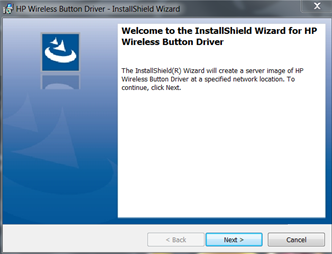
Here's how to extract the MSI for the "Wireless Button driver" for use in MDT/SCCM sequence.


  1. Download the softpack direct from HP's website. In the example here I'm using SP77524 from the Elitebook 820 G3.

  1. Open an elevated command prompt and at the directory you stored the file and type "setup.exe /a"


You will see a wizard appear. Don't click anything on this, leave it open.


  1. In file explorer browse to the "c:\users\%yourusername%\Appdata\local\temp folder.

Order the files and folders by date modified. You will see one at the time you ran the installer, open this folder and inside will be the required MSI along with other required installation files.


You can now take the contents of this folder and add to a deployment package. A silent installation can by performed by running msiexec /I "HP Wireless Button Driver.msi" /qn TRANSFORMS=1033.MST 

If this helps you please don't forget to leave me a +1. Many thanks

Tuesday, 27 October 2015

Retro Rig 1999 - 2001 AMD Athlon 3DFX Voodoo 5 5500 Build

Nostalgia Gone Wild


Previously I worked on a 1998-1999 build and highlighted a few areas where I thought upgrades would be advantageous in certain games. Instead of keeping one single retro-rig and modifying it as required I've decided to build an entirely different system.

Again, I've been reusing some older parts I already have available and throwing in a few newer parts that won't affect the performance of the build such as case, psu, fans etc. The spec will be equivalent to that I had "back in the day" to play games of this time-period.

Original spec was:

AMD Athlon 650Mhz
FIC SD11
256mb PC 100 (originally 128MB upgraded)
Geforce 256 DDR 32MB / 3Dfx Vooodoo 5500 AGP
Soundblaster Live 1024
17GB 5400 RPM HDD  
Iomega Zip 100
4X CDRW
48X CDROM
Suntek Viper case
Suntek 250Watt PSU

Some would question whether or not a Voodoo 5500 was really an upgrade to a Geforce 256 DDR. It wasn't really from a technical viewpoint, but at the time VIA based boards were pretty unstable when used in combination with Geforce 256. This quickly became apparent to me after purchase. After spending months waiting for the 3DFX "Rampage" I choose to go with the Voodoo 5500 upon release as my Unreal Tournament playing career was suffering as a result of constant game-play stutters and crashes thanks to a combination of the Unreal engine's poor Direct3D support and the SD11 board's ability to supply enough voltage via the AGP slot. The choice came down to what games I was playing at the time, and at that time Unreal Tournament was king.

Although I still own FIC SD11 board I'm opting to exchange it for an Asus board (not had a bad experience with Asus boards yet!) It cost me a whole £5 on eBay and came with a few extra cards I won't be using.

Apart from the motherboard and case, I already have all other required parts. The K380 case cost me £23 from ebuyer.com with free next day delivery - can't really beat that. 

One part I considered using was my Promise Ultra 133 TX2, but this is where the annoyances started. The card requires a floppy disk to install prior to operating system installation, unfortunately the Asus K7V was about to give me my first negative Asus motherboard experience as it turns out the floppy disk controllers on these boards are prone to failure. Guess what, mine had failed. I tried everything I could think of including flashing the board bios, tried several FDD's but still could not get it to work, defeated for the moment I've decided to got without the Ultra TX2, but may revisit in the future.

My new spec is:

AMD Athlon 750Mhz
Asus K7V
768MB PC 133 (running in PC100 speeds due to chipset)
3DFX Voodoo 5500 AGP
Soundblaster Live 1024
80GB 7200 RPM HDD
Intel Pro 1000GT Ethernet card
DVD-ROM
CoolerMaster K380 Case
Maplin "G7 Power Extreme 680W" (Which is more like 400watt PSU in reality)


Voodoo 5, Awaken from your slumber and unleash hell upon this world once again.


The gubbins inside the system - Again, I know - those cables!


A nice little system.

One issue I found was despite the new chassis with 2x 120mm fans the system is still quite loud. It turned out to be the combination of the Voodoo 5500 card and the Slot A cooler fan. I will need to get replacements as soon as possible.


Windows 98SE installed and ready to run


Game Performance


Medal of Honour: Allied assault 

This game was like a warning sign for me back in the day that my Voodoo 5500 wasn't going to last very long. While the Voodoo is perfectly able to play these games from a performance point of view, the driver support was just about dropped by this point. Little errors started to creep into games, such as the texture misalignment in MOH:AA in-game menus. Lighting looked a bit weird at times but overall the game was still playable.


Menu misalignment

Strange lighting on moving objects.

Yet some scenes are perfectly fine.

Hitman: Agent 47

Hitman wasn't really a game I ever got into on the PC. I remember playing it on the original Xbox and thought it was alright, but it just didn't seem like a PC game to me at the time. All the same, it seems to run quite well on this little system.

In Glide mode many of the advanced options are grayed out and we're restricted to 16-bit colour

Yet Direct3D offers much more

Woke up in a padded cell chained to my bed - what did I do last night?

Direct 3D may be sharper and more colorful, but it has a horrible bilinear filtered look is more obvious.


Emperor : Battle for Dune

This was a big-time favourite of mine back in the day. Me and a friend played this, along with Red Alert 2, Unreal Tournament for months on my first ever constructed home LAN.

The game runs well on Voodoo 5500, except you must remember to choose 32-bit colour, or things get really weird looking. I've never had this confirmed by anyone, but I'm sure that this game allows use of the advanced motion blur or T-Buffer effects when used with a Voodoo 5500.

So excited to see this again.

16-bit more offers graphical corruption

Fixed by 32-bit mode.
Imperium Galactica 2

Another game I wanted so bad to like was Imperium Galactica 2, I could see the potential, but it's way overly complicated, and impossibly difficult against CPU in skirmish mode. I played this with a friend on the LAN and it was a little more fun to gang up on the CPU, but the game was plagued with "Synchronization error" problems.


This game didn't offer display modes above 640x480 until a patch was installed, be warned!

A really neat concept for a game, but it's just impossibly hard to play.

The Rest

The others I've played on this system include the Quake 3 engine driven Startrek Elite Force, Halflife, the original Aliens Vs Predator game and Unreal/UT. All in all, the performance is good and what you would expect for a high-end card of this time.


Rambling is over for now, if you enjoyed the post please remember to give me a +1 or leave a comment. Thanks!


Friday, 23 October 2015

A Blast from the past - Unreal Forgotten Video Playthrough

Things Just got Unreal


I've been meaning to post this for a good while now but as you can imagine it's been pretty low priority in the grand scheme of things. It's only now with me having injured by back that I'm forced to take some time off work and take it easy that I've found myself once again playing games. Oddly to most people, it's not the latest and greatest games that take my fancy, but the older titles for obsolete systems that I once again find myself drawn towards. This potentially isn't a healthy thing for me, given that I once had a massive games collector habit that to this day still fills my attic (and my wife's head with dread), It's a collection that's legacy spawned a community that still stands in the now passed-on website sega8bit.com. 

I've enjoyed PC gaming since I got my first proper PC in 1998, as soon as I got that 3DFX Voodoo 2 I immediately understood how far ahead the PC was in the graphics department compared to the gaming consoles of the time (PlayStation and Nintendo 64). Unreal was one of the first titles I purchased that I felt properly harnessed the potential of that 3DFX hardware. It was also the first time I ever witnessed a fully 3D world with outdoor scenes featuring distant mountainous terrain, running water and a sense of being on an adventure in an alien landscape. 

After spending months playing Unreal in single player mode I finally delved into the world of online gaming where again my mind was blown by what seemed like an infinitely expandable universe as it was possible to download thousands of player-made levels easily and quickly for the first time. It was only a matter of time before I too would create my own levels and contribute something back to this community. 

My initial attempts were poor to say the least, a couple of box rooms joined up to each-other, but over the next few years as Unreal Tournament came out I continued to tinker with the editor and released with quite a few multiplayer levels (see Sinistral's Unreal). I don't know when it quite happened, but some time in 1999 I decided I wanted to make a single player pack, Work was progressing well up until at least December 2002 and then college and work and life in general got my attention. I would be years later (2009) before I resumed work on the pack and finally released it to the (by then severely diminished) Unreal community. The map pack was quite literally forgotten about, hence the title for my pack was found. Unreal: Forgotten is a result.

Here's the low-down on Unreal: Forgotten

"Forgotten is a Map pack created by Andrew "Sinistral" Allison for the original Unreal. It uses some of the features of the unofficial Unreal 227 patch which can be found at Oldunreal.com. Forgotten consists of six new levels, plus two new cut-scenes."

 Titles and order are as follows:


  • Intromap - And So It Begins
  • The Abandoned Village
  • The Old Mining Colony
  • The Krall Castle
  • The Massacre of Outpost One
  • Earth Under Attack
  • The Skaarj Supreme Command Cruiser
  • Extromap - The End


Intromap: And So it Begins


A brief mini-movie to set the scene, the engine was very limiting from in this respect.


The Abandoned Village


The first playable level sets the scene on the snowy northern hemisphere of NaPali, a part that isn't seen in the original game. 


The Old Mining Colony


This will be pretty familiar to anyone that's played the original Unreal, the level oozes classic Unreal mining level atmosphere, but there's a few surprises in there.


The Krall Castle


A very long level that started out as an experiment of clobbering together a few different pieces I was working on, the result is (what I think) is a pretty epic scale Unreal map.


The Massacre of Outpost One


Explore a human base on NaPali, there's more than a little bit of Stargate SG1 influence in there.


Earth Under Attack


Another Human level set on Earth during a Skaarj invasion. 


The Skaarj Supreme Command Cruiser (includes Extromap- The end)


The final battle takes place on the Skaarj command cruiser where you must face the Skaarj Queen.


Unreal Forgotten can be downloaded at the Unreal Forgotten homepage.

As always, sharing is caring. Don't forget to leave a comment or give me a +1 if you enjoyed this post! Thanks!